プリンタとスキャナ(EPSON CC-600PX)を使う
作成 : 2005/04/24
プリンタとスキャナ(EPSON CC-600PX)を使う
Fedora Core 3(kernel-2.6.11-1.14_FC3)をインストールしたノートPC(Panasonic CF-R3)で、USB接続のCC-600PXを使用できるようにする。
ローカルプリンタに印刷する
パソコンとCC-600PXは、USBケーブルで直接つなぐ。
EPSONのLinux用プリンタドライバは、エプソン アヴァシスのWEBサイト(http://www.avasys.jp/)からダウンロードすることができる。 Fedoraのcups版ドライバパッケージpips600-cups-2.6.2-2.i386.rpmをダウンロードする。
cups(Common UNIX Printing System)がインストールされており、cupsdが起動していることを確認しておく。
# rpm -qa | grep cups
cups-libs-1.1.22-0.rc1.8.5
cups-1.1.22-0.rc1.8.5
libgnomecups-0.1.12-5

# ps -ef | grep cupsd
root      4793     1  0 16:54 ?        00:00:00 cupsd
ダウンロードしたパッケージをインストールする。
# rpm -ivh pips600-cups-2.6.2-2.i386.rpm
Preparing...                ########################################### [100%]
   1:pips600-cups           ########################################### [100%]
Install Message > Described entry of CC600PX in services.
Install Message > Backup file is /etc/services.bak.
Install Message > Start /usr/local/EPKowa/CC600PX/setup to change setup.
プリンタドライバをシステムに追加するために、cupsdを再起動する。
# /etc/init.d/cups restart
lpadminでプリンタを登録する。
# lpadmin -p cc600px -E -v ekplp:/var/ekpd/ekplp0 -m ekcc600px.ppd
cupsdを再起動する前にプリンタを登録しようとすると、次のようなエラーになってしまう。
# lpadmin -p cc600px -E -v ekplp:/var/ekpd/ekplp0 -m ekcc600px.ppd
lpadmin: add-printer (set device) failed: client-error-not-possible
/etc/printcapと/etc/cups/printers.confに設定が書き込まれる。
# /etc/cups/printers.conf
# Printer configuration file for CUPS v1.1.22rc1
# Written by cupsd on Sun 24 Apr 2005 01:12:24 PM JST
<DefaultPrinter cc600px>
Info cc600px
DeviceURI ekplp:/var/ekpd/ekplp0
State Idle
Accepting Yes
JobSheets none none
QuotaPeriod 0
PageLimit 0
KLimit 0
</Printer>
# /etc/printcap
# This file was automatically generated by cupsd(8) from the
# /etc/cups/printers.conf file.  All changes to this file
# will be lost.
cc600px|cc600px:rm=localhost.localdomain:rp=cc600px:
lpstatで確認。
# lpstat -p cc600px
printer cc600px is idle.  enabled since Jan 01 00:00
これで印刷できるようになるはずだったが、ジョブがプリンタに送られない。 いろいろ試してみたが、WEB管理画面から用紙サイズの設定をするといいようだ。
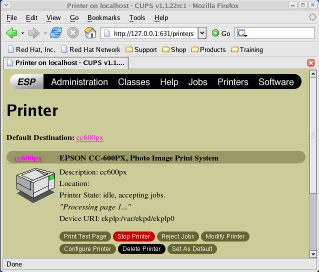
ブラウザを起動して、"http://localhost:631/"に接続する。 cupsのデフォルト設定では、ローカルホストからの接続しか許可しない。 "Manage Printers" --> "Configure Printer"ボタンをクリックする。 ユーザ名とパスワードを入力するダイアログが表示されたら、rootユーザのパスワードを入力する。 "Media Size"で"A4 210 x 297mm"(なんでもよい)を指定し、"Continue"ボタンをクリックする。
上記の操作を1度実行すると、印刷できるようになった。 しかし、同様の操作をコマンドライン(lpoptions)で実行してもダメなのは不思議。
Windowsクライアントから、IPP(Internet Printing Protocol)を使ってFedoraサーバに印刷データを送り、Fedoraサーバに接続されたプリンタから印刷する。
Fedoraサーバの設定
cupsのデフォルト設定では、ローカルホストからの接続しか許可していない。 ネットワーク上のホストからの接続を許可するよう、/etc/cups/cups.confに記述する。
# /etc/cups/cups.conf
....
<Location />
Order Deny,Allow
Deny From All
Allow From 127.0.0.1
Allow From 192.168.0.0/24    <--- 印刷を許可するアドレス
</Location>
....
<Location /admin>
AuthType Basic
AuthClass System
Order Deny,Allow
Deny From All
Allow From 127.0.0.1
Allow From 192.168.0.0/24    <--- プリンタの管理を許可するアドレス
</Location>
....
Browsing On
BrowseProtocols cups
BrowseOrder Deny,Allow
BrowseAllow from @LOCAL
Listen 127.0.0.1:631
Listen 192.168.0.X:631    <--- サーバのIPアドレスとポート
RAW形式の印刷を許可するよう、/etc/cups/mime.typesと/etc/cups/mime.convsを修正する。
# /etc/cups/mime.types
....
########################################################################
#
# Raw print file support...
#
# Uncomment the following type and the application/octet-stream
# filter line in mime.convs to allow raw file printing without the
# -oraw option.
#

application/octet-stream    <--- 頭に'#'がついているので、はずす
# /etc/cups/mime.convs
....
########################################################################
#
# Raw filter...
#
# Uncomment the following filter and the application/octet-stream type
# in mime.types to allow printing of arbitrary files without the -oraw
# option.
#

application/octet-stream       application/vnd.cups-raw        0       -    <--- 頭に'#'がついているので、はずす
RAW形式の印刷を許可し忘れると、Windowsクライアントから印刷できない。 cupsのエラーは、/var/log/cups/error_logに記録される。
E [24/Apr/2005:16:12:47 +0900] print_job: Unsupported format 'application/octet-stream'!
I [24/Apr/2005:16:12:47 +0900] Hint: Do you have the raw file printing rules enabled?
Windowsクライアントの設定
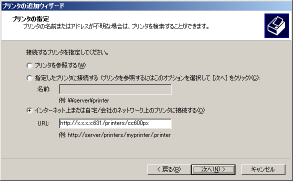
プリンタを追加するとき、"ネットワークプリンタ"を選択する。 "インターネット上または自宅/会社のネットワーク上のプリンタに接続する"を選択し、URLに"http://192.168.0.X:631/printers/cc600px"と入力する。 あとは、CC-600PX用のドライバを選んでインストールする。
スキャナで画像を取り込む
パソコンとCC-600PXは、USBケーブルで直接つなぐ。
EPSONのLinux用プリンタドライバは、エプソン アヴァシスのWEBサイト(http://www.avasys.jp/)からダウンロードすることができる。 Fedoraのスキャナドライバパッケージiscan-1.14.0-3.i386.rpmをダウンロードする。
sane(Scanner Access Now Easy)がインストールされていることを確認しておく。
# rpm -qa | grep sane
sane-backends-1.0.15-1.4
sane-frontends-1.0.12-4
xsane-gimp-0.92-13
xsane-0.92-13
ダウンロードしたパッケージをインストールする。
# rpm -ivh iscan-1.14.0-3.i386.rpm
Preparing...                ########################################### [100%]
   1:iscan                  ########################################### [100%]
Adding the SANE epkowa backend for EPSON scanners to /etc/sane.d/dll.conf
Your old configuration is saved in /etc/sane.d/dll.conf.orig
Adding the sane service to /etc/services
The original file is saved in /etc/services.orig
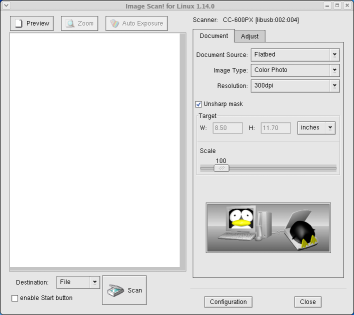
X Windowを起動して、スキャナを使用するためのユーティリティiscan(Image Scan! for Linux)を起動する。
GIMPからスキャンするには、"File"メニュー --> "Acquire" --> "XSane: Device dialog..."の順にクリックする。